

Find and repeat a speaker buzz with your iPhone
Use SignalProof 1.1.0 to mark a rattle frequency, replay it for 10 seconds, and save an independent retest after one change.
Before you start
Keep system volume fixed.
Write down position and conditions.
Start quietly; confirm the output route.
Treat results as practical comparisons.
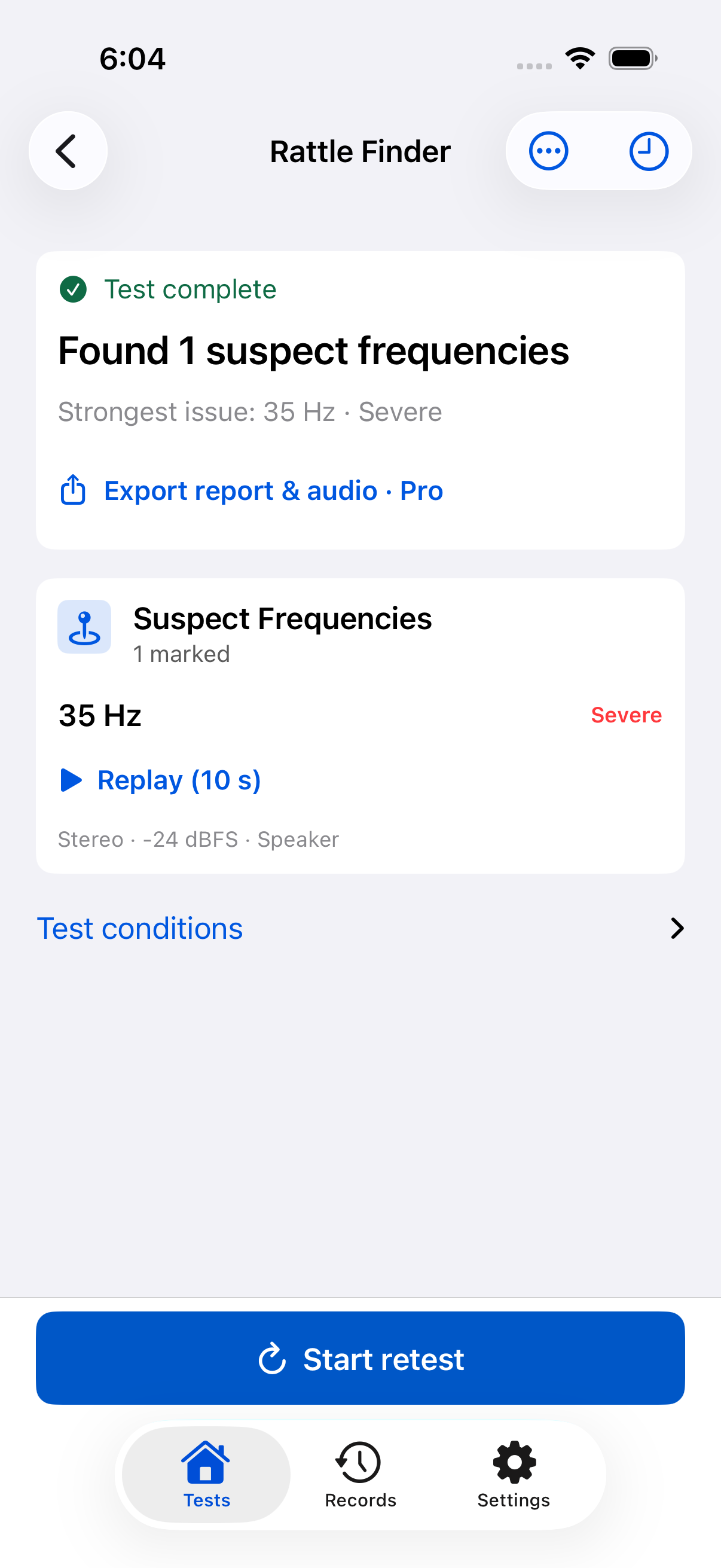
A buzz that only appears on certain notes is hard to explain or check again. The useful first step is to find a sound that brings it out consistently, then save enough context to repeat it.
SignalProof 1.1.0 supplies the tone or sweep, saves marked frequencies, and lets you replay each mark for 10 seconds. You listen and make the observation. The app does not record the microphone or identify the damaged part.
What you need
- Your iPhone running SignalProof 1.1.0.
- The speaker you want to check, connected through a supported output route.
- A quiet enough place to hear the unusual sound. No sound meter is required for this listening check.
For low frequencies, use an appropriate external speaker. The iPhone's built-in speaker may reproduce little of the bass range. Keep phone and speaker volume low, stop if the sound is uncomfortable or distorted, and do not increase volume just to force a fault to appear.
Find a repeatable frequency
- Open Tests → Find a rattle. Confirm the sound is going to the speaker you intend to check.
- Note a project name, location, system volume and output route in the test conditions.
- Start the sweep quietly. When you hear the unusual sound, mark the frequency and add your severity observation.
- Finish and save a named baseline. Use Replay (10 s) on a mark to check whether the same sound appears again.
- Stop playback before changing a cable, speaker position or other part of the setup.
A marked frequency is a lead for further checking, not a diagnosis. A loose nearby object, connection, audio processing, room interaction or speaker component may contribute. Change only one thing at a time so the result remains useful.
Retest after one change
Start a retest from the saved result. Replay the marked frequencies with the same phone volume, output route and listening position, then record what you hear. The retest is saved independently; it does not replace the baseline.
“No rattle heard” and “not yet tested” are different observations. Only mark a frequency clear after listening to it. Write down the adjustment and any conditions that changed.
| Keep fixed | Write down the change |
|---|---|
| Frequency and digital level | Cable, position or setting adjusted |
| Phone and speaker volume | What you heard on this retest |
| Output route and listening position | Any setup differences |
What is free and when Pro helps
Marking, named records, 10-second replay, independent retests and listening observations are free in 1.1.0. Lifetime Pro adds baseline/retest comparisons and rattle report packages with JSON, Markdown and synthesized WAV test audio.
The WAV recreates the test signal; it does not contain a microphone recording of your buzz. Use the report to explain the test setup and your observations to someone helping you investigate. A change from “rattle heard” to “no rattle heard” does not certify a repair.
If you cannot reproduce it
Record what the original sound was, the source volume and which route was in use. Check whether the same issue appears on normal audio at a comfortable level. An intermittent fault may remain intermittent during a sweep; a quiet test is not proof that the speaker is fault-free.
For a direction problem instead of a buzz, use the left/right channel guide. For sound-level comparisons, use pink noise with a separate meter.