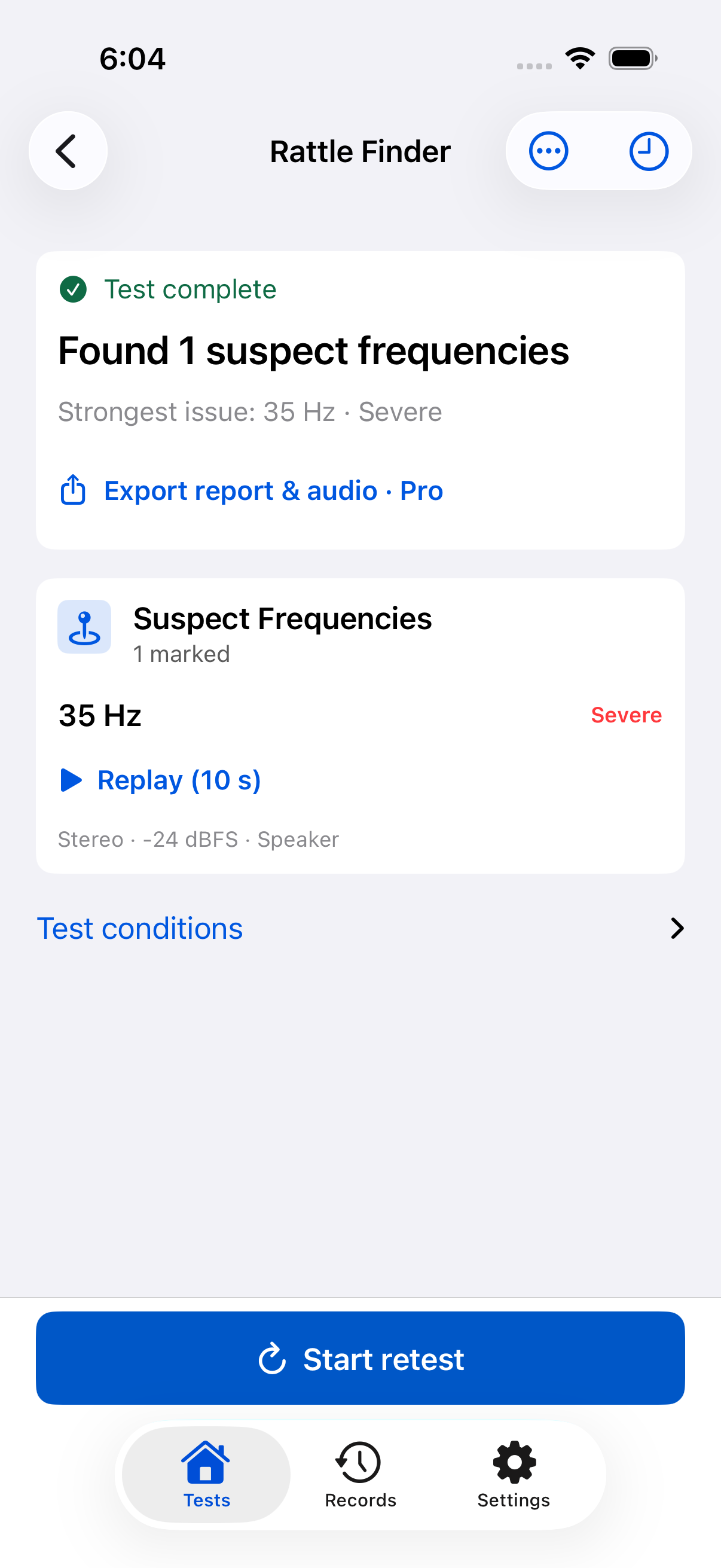
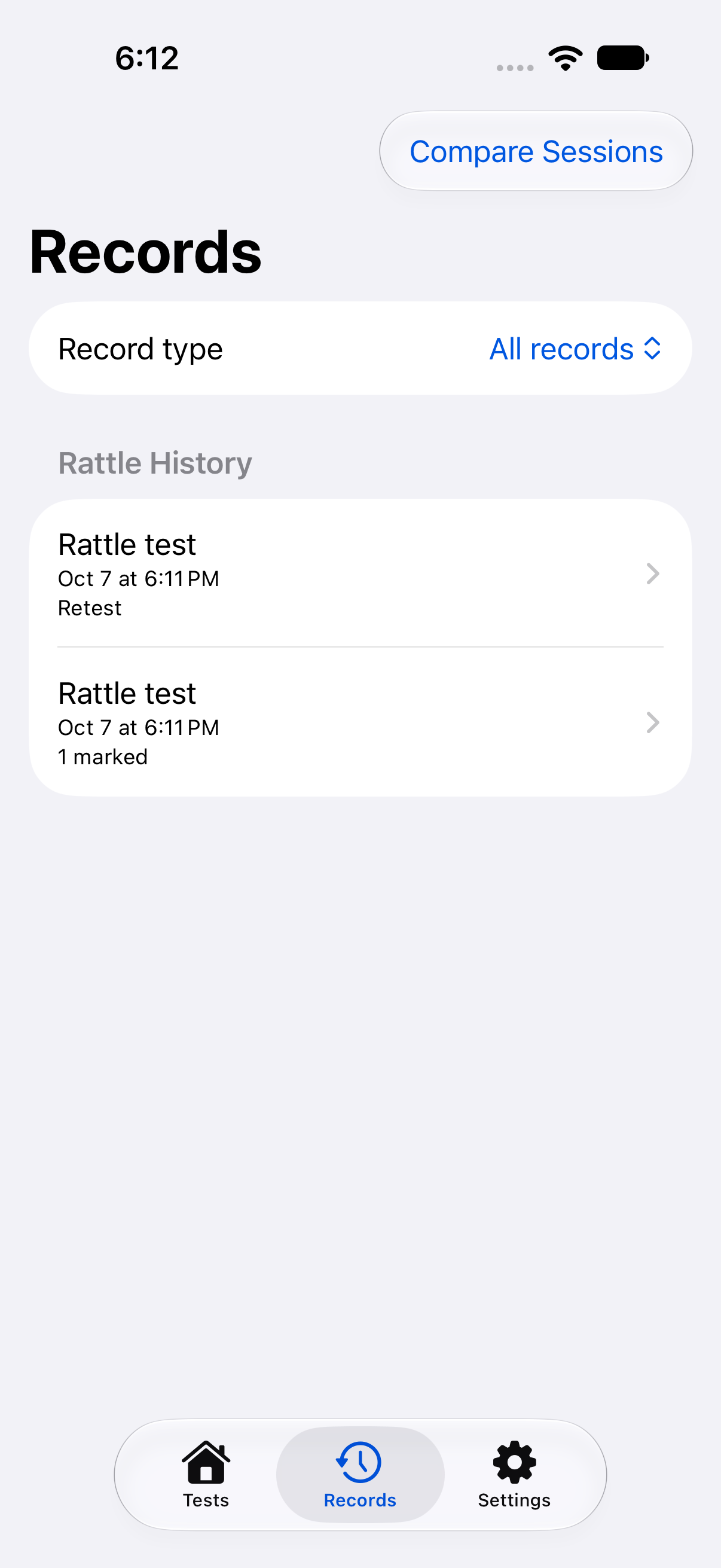
Find the frequencies that bring out a speaker buzz. Save them, replay the sound, and retest after an adjustment. Check left/right audio and compare levels with a separate meter, too.
1.1.0 simulator interface with example records. Marking, replay and independent retests are free.
Choose the right setup
Listening or measuring?
Listen for buzz or channel direction.
Use the speaker or stereo headphones you want to check. No sound meter is needed to listen for an unusual sound or check left and right.
A phone speaker does not replace a stereo headphone setup or reproduce every frequency equally.
Compare a sound level reading.
Use an external sound meter, or a meter app on a second device. SignalProof plays the test sound; the separate meter supplies the reading.
Keep volume, listening position, distance and meter settings consistent. A Bluetooth stereo route does not select individual surround speakers.
Compare and explain
What changed after the adjustment?
Lifetime Pro brings baseline and retest observations together. Record what changed, see where you heard a rattle again, and keep untested frequencies distinct from ones where you heard no rattle.
Compare your listening observations side by side.
Compare reference meter readings and export CSV/PDF.
Share a rattle report with settings and synthesized test audio.
Observations come from you. A quieter result does not certify a repair. The WAV in a share package recreates the test signal; it is not a recording of your speaker.
Use a tone, noise or sweep for a basic check. Choose an optional one-time SignalProof Pro purchase to compare before and after, organize readings, and share fuller reports.
Free core
A complete first check.
All tones, noise, sweeps, presets and playback patterns
Left/right checks, local readings and single-session PDF
Mark rattle frequencies, save named records and replay for 10 seconds
Save an independent retest and your listening observations
SignalProof Pro · Lifetime
Make before and after clear.
Compare rattle baseline and retest observations side by side
Compare meter records and export CSV/PDF
Organize reading records with tags
Share rattle reports with JSON, Markdown and synthesized WAV test audio
No subscription. Restore Purchases is available in the app.
Current store pricing is temporarily unavailable here. Check the App Store and the in-app purchase screen.
Yes. Use a tone or sweep and listen for the frequencies that bring out the unusual sound. Start with low phone and speaker volume. You judge what you hear; SignalProof does not automatically identify a damaged part or fix the speaker.
Not for listening for a buzz or checking left/right direction. To compare sound levels, use an external meter or a meter app on a second device. Keep its position, weighting and time settings fixed. SignalProof supplies the sound, not the acoustic reading.
Connect your stereo headphones or external speaker using an output route available to your iPhone, and confirm where the sound is playing before testing. Bluetooth, adapters and speaker processing can affect the result. Stereo left/right output does not individually address a surround system's center or rear speakers; CarPlay support is not promised.
Use the same frequency or noise type, digital level, phone volume, output route, speaker position and distance. When measuring, also keep the meter and room conditions consistent. Write down each intentional change in your test notes.
In version 1.1.0, all signals, presets and playback patterns are free, along with local readings, single-session PDF, rattle marks, 10-second replay and independent retests. The optional one-time SignalProof Pro purchase adds rattle retest comparisons, meter-record comparisons with CSV/PDF export, reading tags, and rattle report packages containing synthesized test audio. Pro is a lifetime unlock, not a subscription. Check the App Store and the app for current prices.
Use Restore Purchases in Settings or on the Pro screen, with the App Store account that purchased the lifetime unlock. Access returns after the purchase is verified. If it does not, contact support with the version and on-screen error.
The current app keeps sessions, notes and presets on your device and requires no account. Reports leave the app when you choose to export or share them. SignalProof generates test sounds; it does not record microphone audio or automatically diagnose the sound. A rattle report can contain synthesized WAV test audio, not a microphone recording. Website analytics have a separate optional consent choice.
No. dBFS controls the digital signal level. Acoustic sound pressure depends on system volume, output hardware, distance and room conditions. Use a separate meter for acoustic readings. SignalProof is not a certified calibrator or a medical hearing test.
Your next audio check
Choose a signal. Keep the conditions.
Tones, noise and sweeps for practical checks on your iPhone.
Allow Microsoft Clarity to record how you use this website, including clicks and scrolling, to help improve it? Website privacy